PRODUCT ENGINEERING
How to Connect Supabase to Orkes Conductor | Build the Integration Yourself

Maria Shimkovska
Content Engineer
Last updated: November 6, 2025
November 6, 2025
5 min read


Nov 5, 2025

Oct 31, 2025
Oct 7, 2025
Join thousands of developers building the future with Orkes.
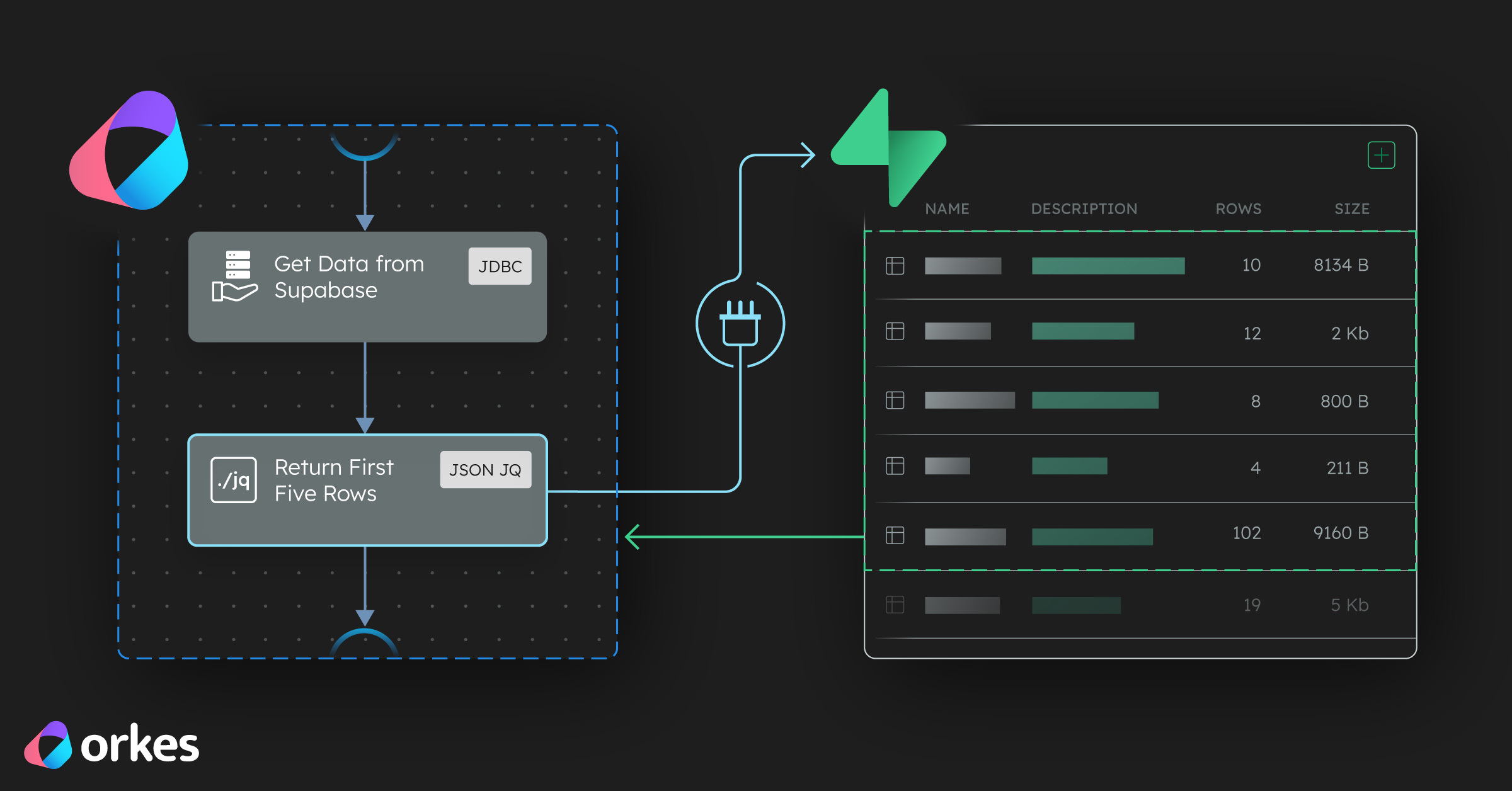
Behind the scenes of the Supabase automation template. How to connect your database to Orkes Conductor from scratch.
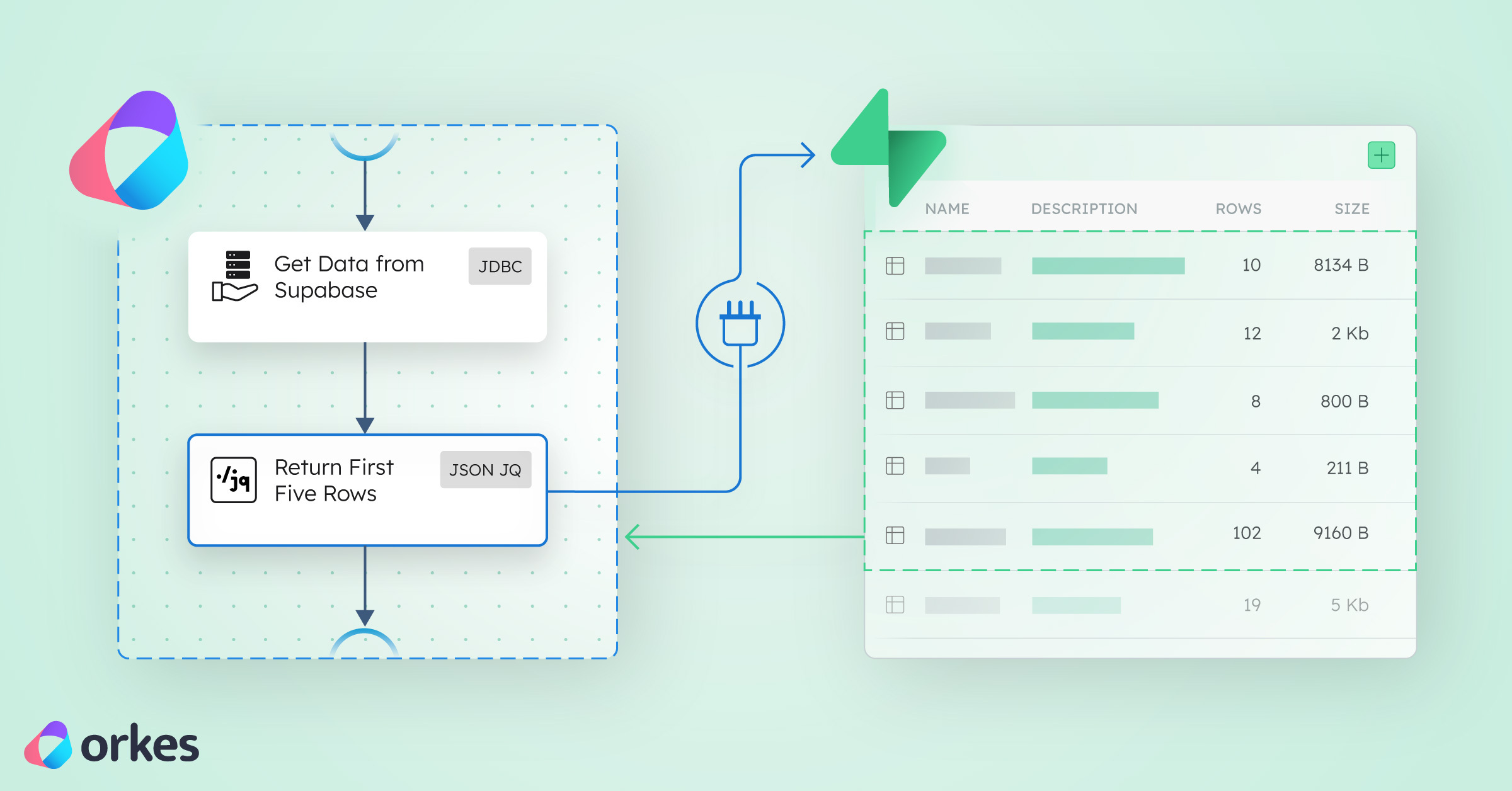
Our Supabase + Orkes Template lets you connect Supabase in seconds but if you want to understand how it works, or customize it for yourself, this guide shows exactly how to build that connection manually in Orkes Conductor.
By the end, you will have a workflow that reads your Supabase data and processes it in Orkes Conductor using nothing but:
Before connecting Orkes to Supabase, you need a database with at least one table.
If you don’t have one:
CREATE TABLE public.my_table (
  id SERIAL PRIMARY KEY,
  note TEXT,
  created_at TIMESTAMP DEFAULT NOW()
);
Once this exists, you can connect Orkes directly to it.
Inside your Supabase project:
It will look like this:
postgresql://postgres:<password>@<project>.supabase.co:5432/postgres
To use it in Orkes, convert it into a JDBC format:
jdbc:postgresql://<project>.supabase.co:5432/postgres
Keep your Host, Port (5432), Username (postgres), Password, Database name (postgres by default) handy. You’ll paste these into Orkes next.
This is what lets Conductor talk to Supabase.
supabase_connectionPostgresjdbc:postgresql://<project>.supabase.com:5432/postgres)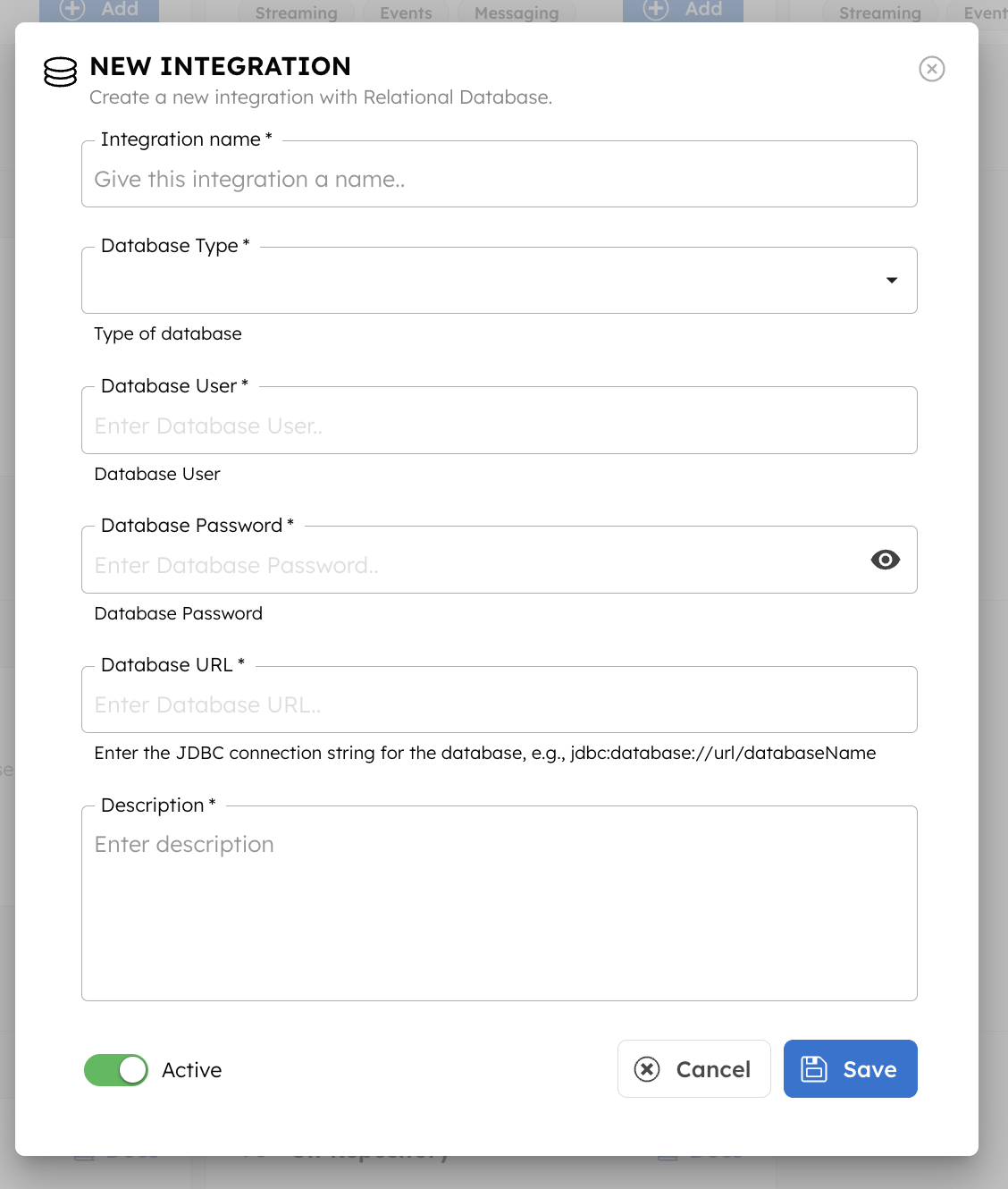
That’s it. Orkes can now talk to your Supabase database. Sweet! 🥳
Now let’s make sure everything works by creating your JDBC workflow.
SupabaseConnectorManualsupabase_connection)SELECT * FROM public.my_table;
This task will fetch rows directly from Supabase.
Next, add a second task to inspect the data.
processData{
"queryExpression": "{first_rows: .getAllData_ref.output.result[:5]}"
}
This pulls the first 5 rows from your Supabase table so you can preview the results easily.
Your final workflow definition should look like this:
{
{
  "name": "SupabaseConnectorManual",
  "description": "Fetches and processes Supabase data through Orkes Conductor",
  "version": 1,
  "tasks": [
    {
      "name": "getAllData",
      "taskReferenceName": "getAllData_ref",
      "type": "JDBC",
      "inputParameters": {
        "integrationName": "supabase_connection",
        "statement": "SELECT * FROM public.my_table",
        "type": "SELECT"
      }
    },
    {
      "name": "processData",
      "taskReferenceName": "processData_ref",
      "type": "JSON_JQ_TRANSFORM",
      "inputParameters": {
        "queryExpression": "{first_rows: .getAllData_ref.output.result[:5]}"
      }
    }
  ],
  "schemaVersion": 2
}
That’s the entire pipeline; a clean example of "query → transform" using Orkes.
Once your connection works, you can:
This is how your workflow evolves from “just run SQL” into full-blown automation.
For this Orkes Conductor setup, I’m intentionally using the direct Postgres connection (5432) because Conductor often runs many tasks at once, and each JDBC task opens its own database connection.
Supabase’s transaction pooler (6543) only allows a small number of clients — usually 10–20 — so it quickly throws FATAL: Max client connections reached when multiple tasks run in parallel. (This might be different for the paid versions. But I wanted to make this free.)
The direct connection gives Postgres far more room, making it stable and reliable for workflow systems.
At this point you can:
And when you want to skip the setup, the Supabase Automation Template is waiting for you, but now you know exactly how it works under the hood.